

Official sponsor of Oracle-NetSuite SuiteWorld 2025 in Las Vegas, October 6–9! 🎉.

How to Display List of Open Cases on Item Record in NetSuite

odecloud community it consulting

(Originally posted to LinkedIn.com by OdeCloud’s Ahad Arain)

(Updated Oct. 18, 2021)

For many day to day users, the world of NetSuite can be a difficult one to navigate. With two product releases each year, and a ton of new features being pushed, performing customizations can seem like a task strictly for experienced professionals or consultants.

Our goal at OdeCloud is to enable end-users (like yourself) to be able to perform such tasks with ease and efficiency. The above is a request I’ve come across many times throughout the years. I will summarize how you can perform this successfully, while also applying the same technique to multiple records in NetSuite, saving time and increasing efficiency in the long run.

First, let’s start by discussing the difference between a subtab and sublist in NetSuite. A subtab would be the various tabs you see throughout the system on records, regardless of the record type. For example, a Sales Order generally has the following subtabs: items, shipping, billing, accounting etc.

Each subtab may have a separate set of sublists within them. In the image below, Related Records is the selected subtab and Support Cases is an associated sublist.
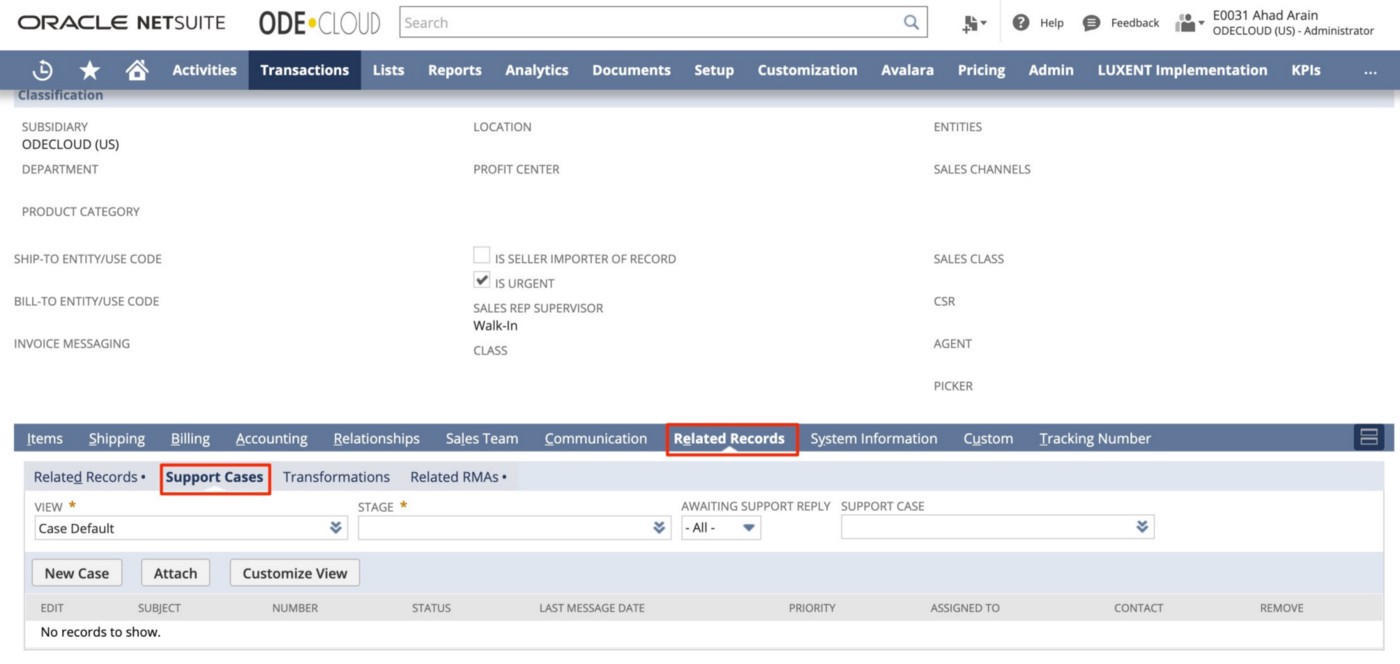
Find Related Records and Support Cases

It’s important to note that sublist data is mainly driven by saved searches. This means you can customize a set of existing subtabs to have multiple custom sublists, so long as the details you need are available in an existing saved search.

As the saved search criteria or columns are updated, so will the columns shown on sublist results. This characteristic is what makes these a very powerful tool that can be utilized with little effort to help make it easier to find key related information, without having to open multiple windows.

In order to create a list of items with associated cases, you will need to create or find a saved search that has the desired information.

  • Ensure Available as List View = True (checked)
  • Ensure Available as Sublist View = True (checked)
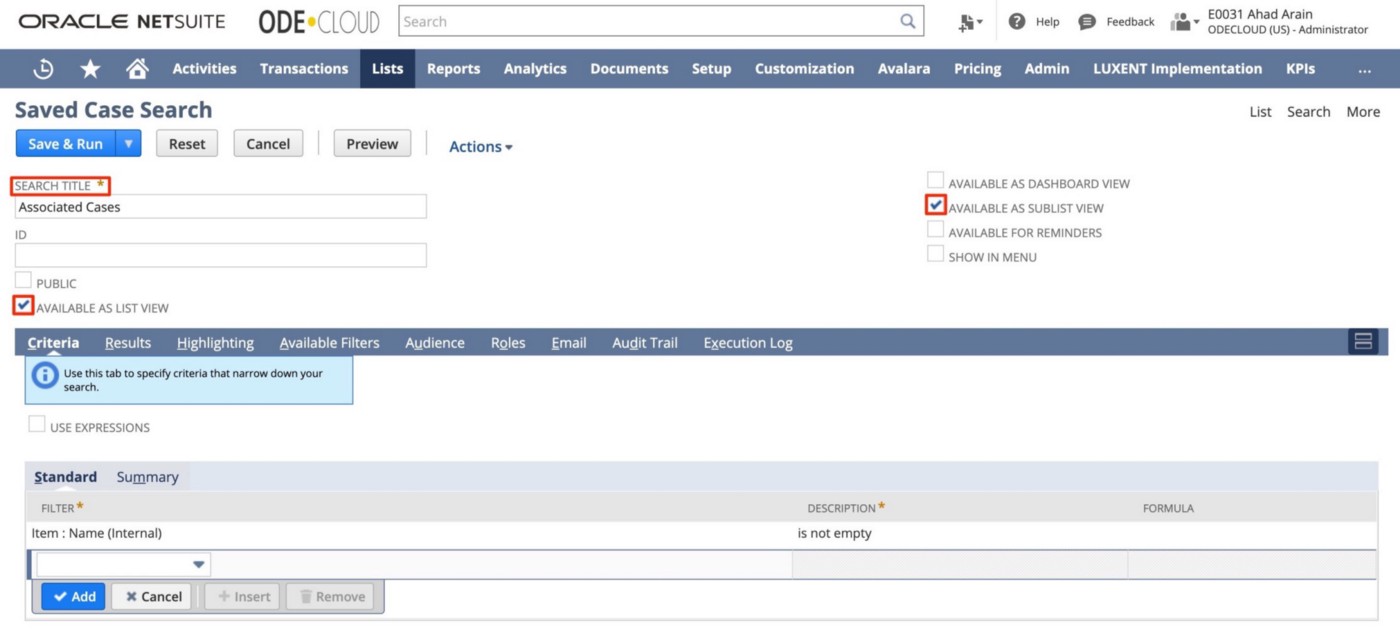
Ensure you're able to see the NetSuite item record in list views
  • Under Available Filters, please ensure that Item is added to the list as shown below. This is added because we only want to source cases for the particular item selected, not all items.
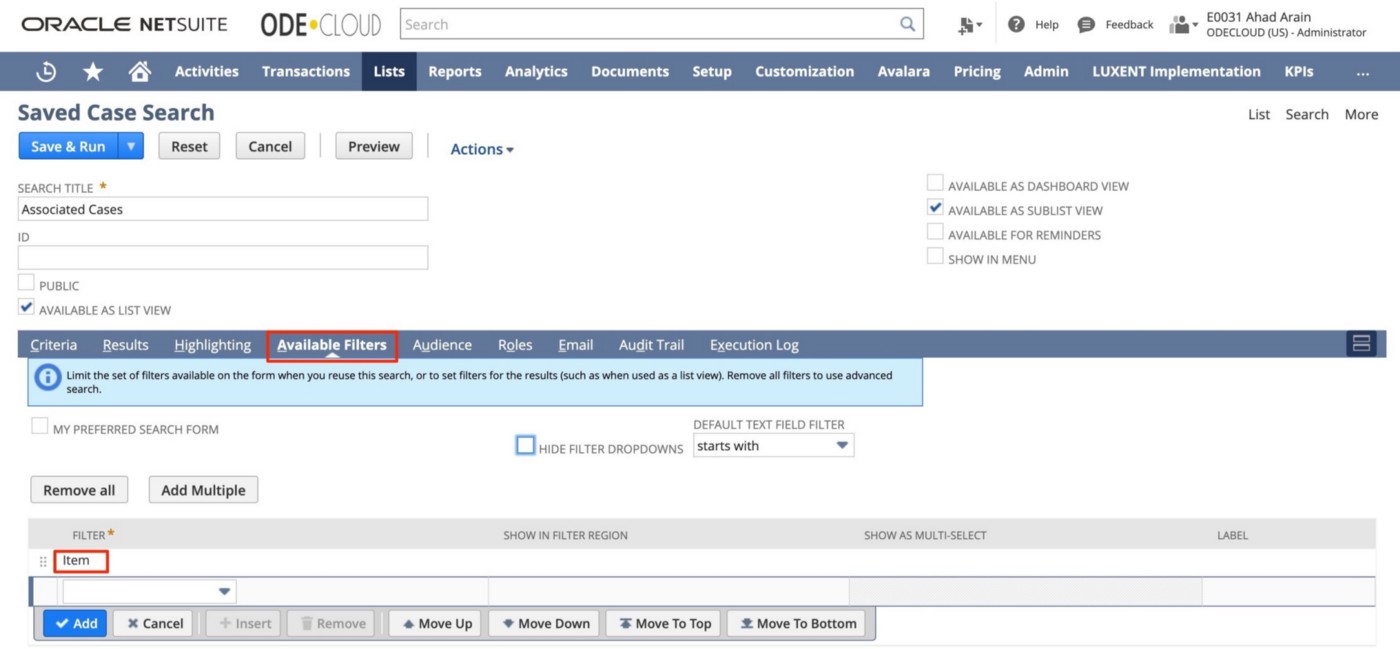
Filter the NetSuite Item Record with available filters

Believe it or not, the toughest part is now complete. Next, we will assign this sublist to the item record. Note: you may need higher level permissions or need to contact an Administrator to access the customization capabilities.

  • Navigate to Customizations > Forms > Sublists: This is where you will be able to assign the saved search as a custom sublist to various record types.
  • Select the saved search you had just created and assign it to the item record. You will need to enter a label and select which tab, I chose to display this on the communication tab within the item record.
  • You will also want to specify each individual item type you would like this displayed on. You may click them one at a time in every column to apply to all item types (pro tip: press tab/shift+tab to move across columns and spacebar to check/uncheck the boxes on your keyboard). Once complete, click Save.
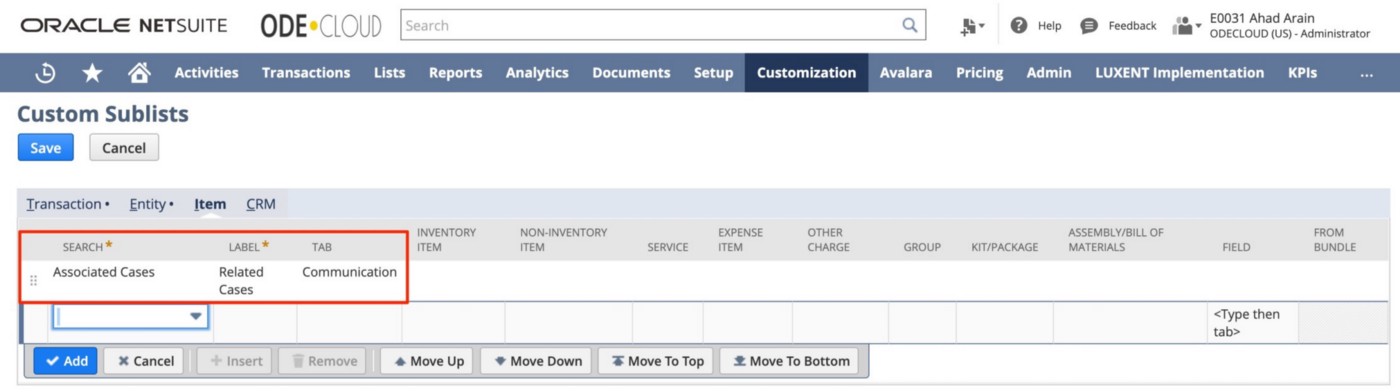
Specify item types in the NetSuite item record

Now when you go to the item record and communications tab, you will see the “Related Cases” sublist we have just created. Feel free to create some custom cases to test the results and ensure they are working as you desire. If you need to make tweaks, no further customization needed. All you need to do is edit the saved search criteria, or change the results columns to modify the details in the sublist.
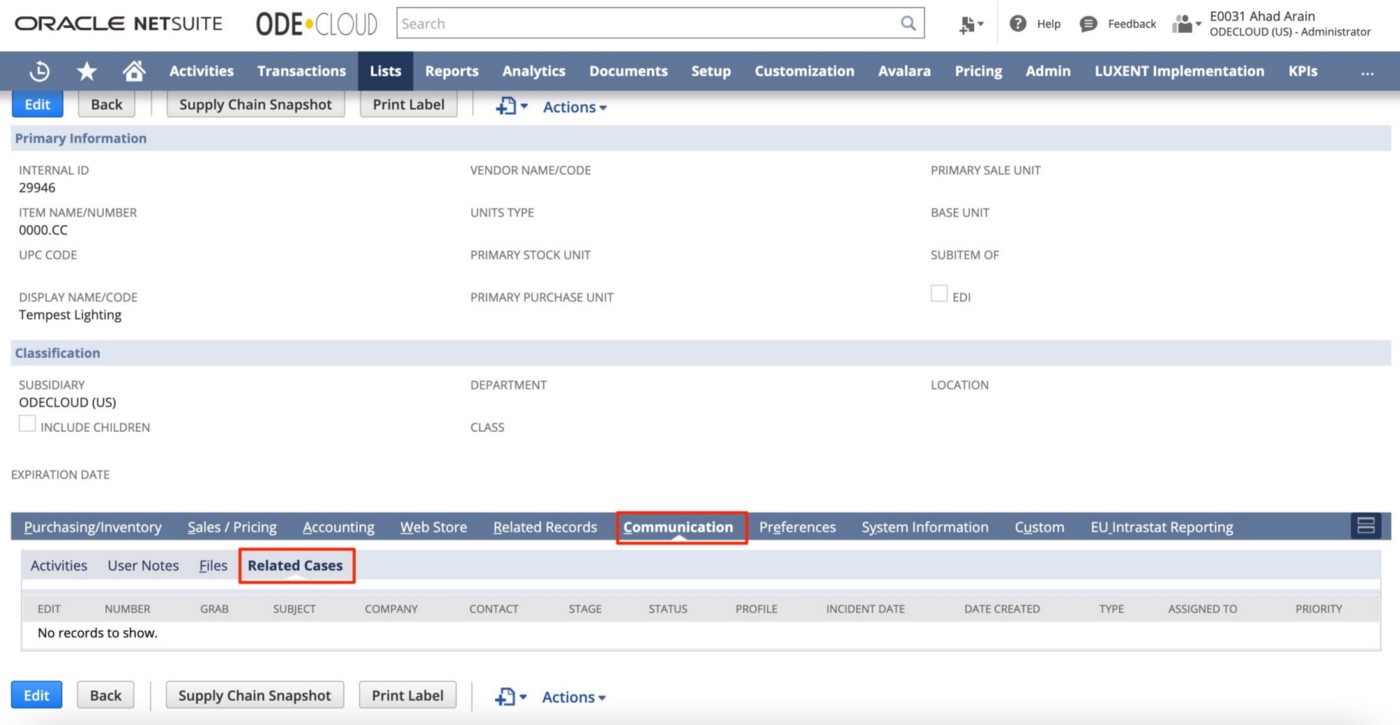
Find all related cases within the NetSuite item record

This technique can also be applied to transactions and entity records with the exact same process above.

If you have any NetSuite related concerns, feel free to connect with me on LinkedIn or submit a request to one of our talented team members at www.odecloud.com via Live Chat.

You can also book time with me directly: https://odecloud.com/meet-odecloud-plt

Trending Articles

The Practice of Accounting in Oracle NetSuite
NetSuite Outsourced Manufacturing: A Comprehensive Guide
OdeCloud Partners with ShipHawk: Unlocking Seamless Fulfillment
Simple Guide to NetSuite Grid Order Management
Stepping over 30% utilization of NetSuite ERP.

Trek Travel Streamlines Travel Protection Integration with OdeCloud’s experts

Looking to streamline your operations with more automations? Keith shares an OdeCloud project.

#netsuite

#integrations

Project Outcomes

This new integration system transformed our travel protection service.

  1. Efficiency Gains: Completely automated the process, eliminating the need for monthly roster reconciliation.
  2. Enhanced Guest Experience: Guests benefited from a smoother booking process with transparent travel protection options tailored to their needs.
  3. Accuracy in Pricing: The integration ensured precise calculations based on complex variables.
  4. Scalability: The system can easily accommodate future growth and changes in travel protection offerings.

Background

Our company offers guests the option to protect their travel investments through a travel protection plan. This service is crucial, as it provides coverage in cases where guests need to cancel their trips due to unforeseen circumstances such as illness or emergencies. However, the process for managing this service was previously cumbersome and inefficient, requiring manual coordination and reconciliation with the travel protection partner.

Challenge

We needed a seamless integration within NetSuite to handle complex calculations for travel protection costs. The solution needed to account for multiple variables, including:
Guest-specific factors such as age and location.
Travel details like destination, total cost, and type of coverage (e.g., pre-trip hotels, post-trip hotels, flights).
Dynamic pricing calculations based on these variables.

Before partnering with OdeCloud, the process was manual and error-prone, involving monthly exchanges of rosters between our team and the travel protection provider. This created inefficiencies and delayed customer service.

Solution

OdeCloud worked with us to design and implement a fully integrated travel protection solution within NetSuite. Key features of the solution included:


1. API Integration: OdeCloud enabled real-time communication with the travel protection partner’s API. This allowed us to dynamically calculate the cost of travel protection based on the guest’s specific details.
2. Seamless Booking Experience: The integration allowed the travel protection cost to be automatically added as a line item to guest bookings within NetSuite.
3. Flexible Adjustments: Guests could easily add or cancel travel protection directly through NetSuite without requiring interaction with third-party systems.
4. Eliminating Manual Processes: The previously manual reconciliation process was replaced with automated inline API transactions, eliminating errors and saving significant time.

Conclusion

This integration is one of the most impactful projects we’ve undertaken, and it holds a special place in our transformation journey. With OdeCloud’s expertise, we achieved a solution that not only streamlined operations but also elevated the guest experience. This project exemplifies the power of technology in solving complex business challenges and enhancing customer service.